


A florist can pay for clicks from people searching for plastic flowers, not fresh bouquets. Google Ads search terms can show where a campaign reaches people whose needs do not fit the business. That gap can drain a budget without bringing in useful leads.
Some searches may be hidden to protect privacy, so the report is useful but never a full record. It helps owners make better decisions from the searches Google can show. The aim is not to block every search that looks unfamiliar.
Instead, owners can judge each search against the offer and campaign performance. North Layer works with small business owners to make that review clear and practical.
Key Takeaways
- Actual searches can reveal irrelevant clicks and useful customer language.
- The Search terms report does not show every low-activity query.
- Review relevance, cost, and conversions before making a change.
- Keep useful searches, exclude irrelevant ones, and monitor uncertain cases.
- Check whether new ad text and landing pages fit customer intent.
From opening the report to deciding what to keep, exclude, or improve, each step can be guided by real campaign evidence.
What Are Google Ads Search Terms, and Why Do They Matter?
A customer types a search term into Google, while an advertiser chooses a keyword to target. The difference helps explain why a campaign can appear for searches the advertiser did not enter.
A keyword is a word or phrase an advertiser adds to an ad group to target potential customers. The Search terms report shows searches used by enough people to trigger impressions and clicks. Google’s guide to the Search terms report explains its main fields and limits.
The report shows searches that reached its activity threshold, not every query. Low-activity searches may be hidden for privacy.
A Google Keyword search is the wording a customer enters, not the advertiser’s chosen keyword. The visible searches can suggest new keywords and language for ads or landing pages.
Search terms insights offers a different view. It groups activity into themes and subthemes, using theme labels based on the last 56 days of data.
A theme may include terms that no longer serve ads or that the advertiser already excluded. Low-activity queries may appear in subthemes or “other queries,” an aggregate rather than a list of visible searches.
Conversion totals can differ between the report and insights because conversions may arrive after a delay. Search partner terms may also look longer or use different formatting.
Performance Max search terms can help identify searches that resulted in conversions. Store visit and store sales conversions do not work with the Search terms report.
Knowing what the report includes and omits makes its figures easier to read when the account owner opens it.
How Do You Find the Search Terms Report in Google Ads?
Open the Search terms report from Campaigns > Insights and reports > Search terms in the left navigation. That view shows search data for the selected account or campaign.
For the Search terms report Google Ads users can adjust the table before reviewing or sharing its data. Follow these steps:
- Open the Google Ads account.
- Select Campaigns in the left navigation.
- Open Insights and reports.
- Select Search terms.
Use Columns to add, remove, or reorder fields in the table. Add the fields that help answer the campaign question, such as cost or conversions.
Download exports the data for review outside Google Ads. Segment breaks the report down by time, conversions, device, or network, which can show where results differ.
Expand changes the table view. It can make more of the report visible while the account owner checks individual searches and their results.
Report editor offers another way to view account, campaign, or ad group data. Find it through Campaigns > Insights & reports > Report editor > Predefined reports (Dimensions).
That view can help compare data across parts of an account, but it does not let users add keywords or negative keywords directly. For a first review, the Keyword and Match type columns are the best fields to inspect.
How Do You Read Search Term and Match Type Data?
The Keyword and Match type columns show which account keyword matched a customer’s wording and how Google classified that match. They answer different questions, so the reported match does not always mirror the keyword setting.
The Keyword column names the account keyword, while Match type describes the search term match type. The Keyword column is hidden by default. Add it through Columns > Attributes > Keyword > Apply.
Read the Keyword and Match Type Columns
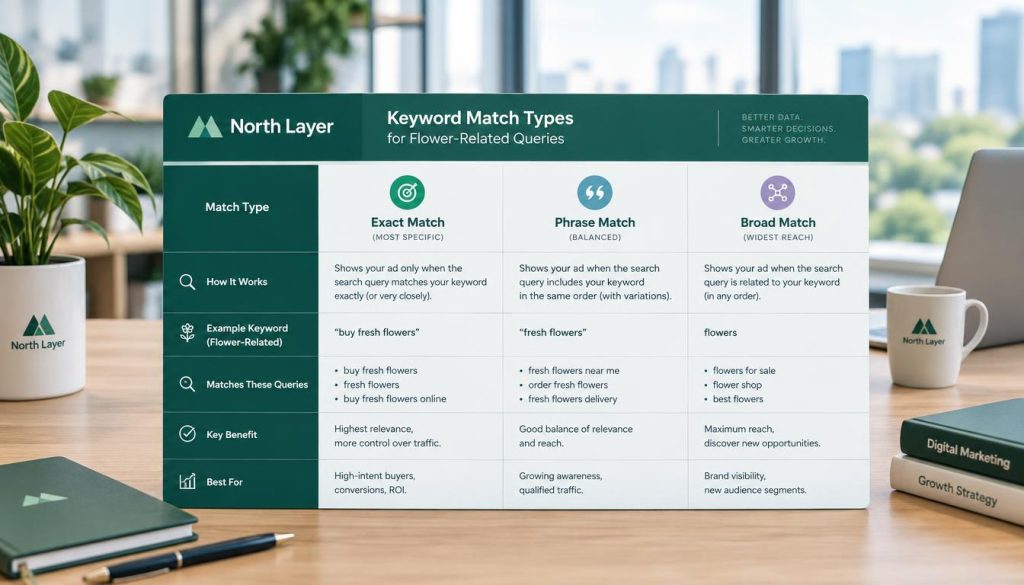
The Match type column helps explain the relationship between a keyword and the search that triggered an ad. The table shows common examples of keyword match:
| Keyword | Customer search term | Search term match type | Reason |
|---|---|---|---|
| [purple flowers] | purple flowers | Exact match | Exact wording |
| [purple flowers] | purple flowrs | Exact match (close variant) | Close variant with the same meaning and intent |
| “purple flowers” | free purple flowers | Phrase match | The query contains the phrase |
| purple flowers (broad match) | pink flowers | Broad match | A related variation |
Why the Reported Match Can Differ
The report classification describes how the actual search matched, not simply the setting selected for the keyword. It records the search relationship, which can include close variants.
Close variants can include singulars, plurals, acronyms, word stems, abbreviations, accents, and terms with the same meaning. The customer may not type the keyword exactly and still see an ad.
Dynamic Search Ads and Shopping targets do not use keywords. Their Keyword field is blank, and their match type appears as Exact.
Once the match data makes sense, the next question is whether those searches fit the offer and justify their spend.
Which Searches Are Wasting Your Google Ads Budget?
An eyeglasses seller may see a search for “wine glasses” in the report. That wording can reveal a clear mismatch if the business sells eyewear, not drinkware.
A search that does not fit the products or services may be irrelevant traffic. The table can help separate that case from searches that need more review.
| Search pattern | What it may signal | Sensible check |
|---|---|---|
| Search for a product the business does not sell | Irrelevant traffic | Whether the business offers that item |
| Search with conversions | Possible customer fit | Compare results with the campaign goal |
| High impressions and few clicks | Possible mismatch or weak bid competitiveness | Assess relevance and bid strategy before changing it |
A search with no conversions is not automatically wasted. Check its relevance, spend, and the campaign’s conversion data before excluding it.
High impressions with few clicks call for a closer look, not an instant block. If the search fits the offer and deserves a bid, a weak bid strategy may be one possible cause.
Judge performance by the campaign goal and customer value, not clicks or impressions alone. This guide to troubleshooting underperforming Google Ads covers related checks.
Once a search looks irrelevant or valuable, the owner can make a targeted campaign change instead of reacting to every unfamiliar phrase.
How Should You Turn Search Terms Into Campaign Changes?
Make one deliberate change at a time, guided by relevance and performance. A measured change makes it easier to see whether a search term improves the campaign.
Some searches are good candidates for new keywords. Others may need an exclusion or more time in the report before the account owner acts.
Add Proven Searches as Keywords
A search that converts and fits the offer may merit addition as a keyword. It can go into an existing ad group or a new one built around that customer need.
Choose a match type based on the reach and control the business wants. A tight ad group can keep related keywords and ads focused on one offer or intent.
Repeated routing of the same search through several keywords or ad groups can create cross-pollution. Review match types and use suitable ad group-level or campaign-level negative keywords to limit overlap.
Google Ads Keyword Planner is a separate source of keyword ideas and estimates, not a substitute for actual search performance. Discover new keywords can help explore terms related to a product, service, or website.
Exclude Irrelevant Searches Carefully
Negative keywords prevent ads from showing for excluded searches. An eyeglasses seller could block “wine” after seeing “wine glasses,” if drinkware is outside its offer.
Before making a change, use this short review:

- Confirm the search fits the business offer.
- Check its conversion and cost data.
- Choose whether to add it, exclude it, or monitor it.
- Review the change against later performance.
Negative keywords account for letter case and misspellings automatically. Separate versions are not needed for those variations.
Smart Bidding is another available approach. It uses contextual signals to set a bid for each auction, but it does not promise a particular result.
These checks help the owner decide whether to add negative keywords, keep a search, or monitor it. The next improvement can use customer language to shape what people see after a search.
How Can Search Term Data Improve Ads and Landing Pages?
A customer searching “same-day bouquet delivery” may reveal a need that a florist’s broad ad copy does not address. Those words show what the person wants and when they want it.
Customer language can help an ad and landing page match the searcher’s intent. Use it to make the message more specific without promising a service the business cannot provide.
Relevant targeting brings the right searches closer. Matching ad copy and landing page content helps carry the message through.
Find Campaign Keywords With Keyword Planner
Google Keyword Planner is a free resource for keyword ideas, list building, and bid estimates. It can show search trends and changes in search frequency over time.
Forecasts estimate impressions, clicks, or conversions based on planned spend. The tool helps find campaign keywords with Keyword Planner, but it does not show actual searches that triggered ads.
There is no separate Google Keyword Planner account. A Google Keyword Planner login requires Google Ads account setup and a created campaign.
Access it through Tools > Planning > Keyword Planner. Accounts in Smart Mode need to switch to Expert Mode to use it.
Discover new keywords can start with words about a product or service, or with a website. Users can save or share plans and use them to create a campaign.
Match Ads and Landing Pages to Customer Intent
Customer wording can show whether people want a price, a local service, a product feature, or a fast booking. The ad can address that need with clear, accurate language.
The landing page should then support the same promise. A search for same-day delivery should lead to a page that explains the service and its limits.
Keyword Planner can help assess future ideas, while the report shows actual search activity. The strongest gains pair relevant targeting with a consistent message from search to landing page.
Conclusion
Relevance and performance data should guide campaign changes. Missing or low-volume searches limit what the report can show, so one unseen query does not tell the full story.
Choose one campaign, review its available search data, and select one change to monitor. That small test can help reduce wasted spend without cutting searches that may bring good customers.
We can help small business owners make their marketing clearer and reduce wasted spend, one practical decision at a time.